Your prompts
Save a request you make often, and start it again with one click.
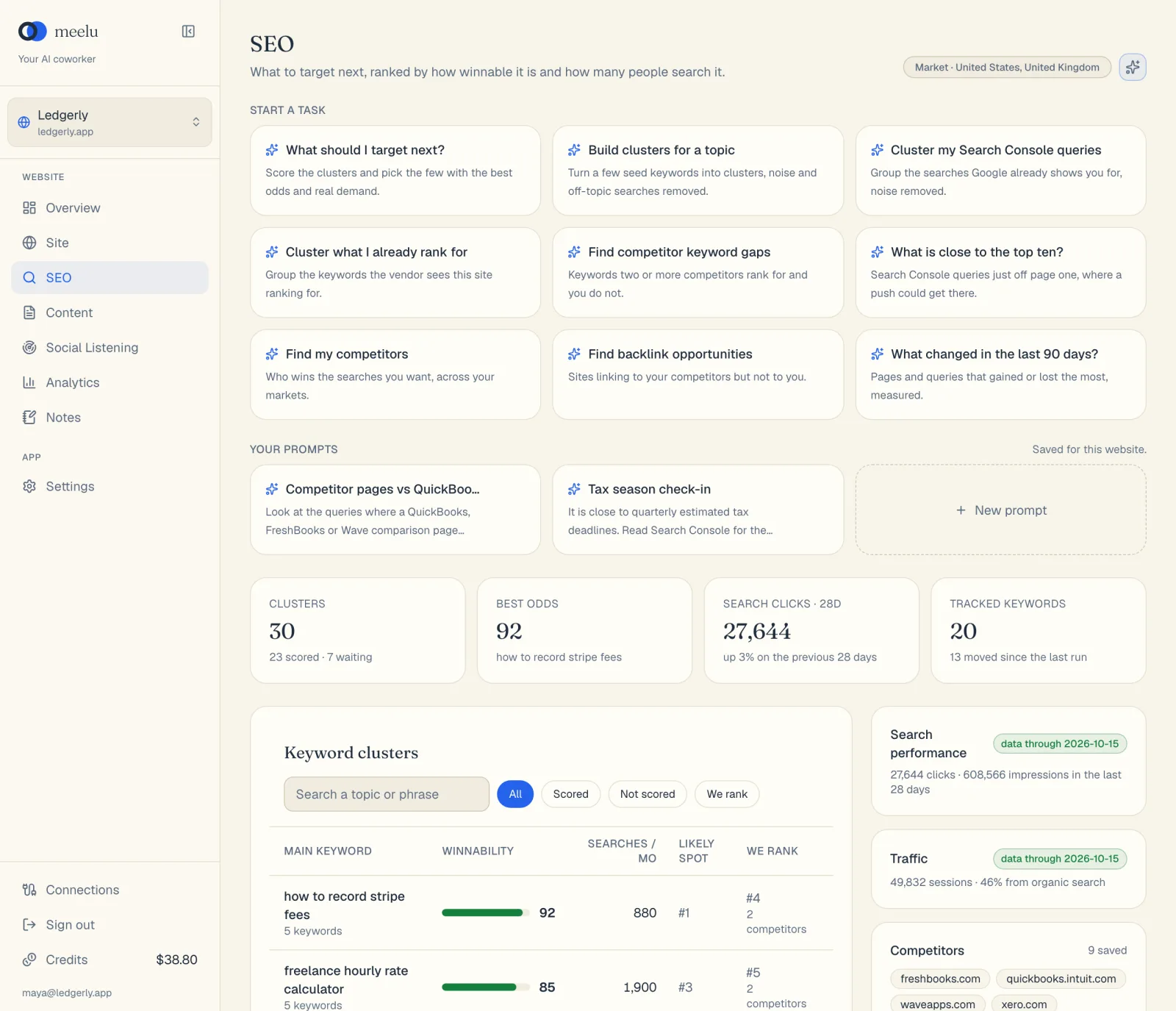
Your prompts are requests you save yourself, so you can run them again without retyping. For example, "Weekly keyword check: which queries moved more than three positions this week, and which pages own them?".
A saved prompt shows as a card. Click the card, and Meelu starts a new task with your saved text.
Where you find them
Your prompts appear in a Your prompts row on two screens:
- 1Ask Meelu
- 2Plan a page for a cluster
- 3Save a prompt of your own
- the SEO desk, under Start a task
- Site, Internal links, on the Link suggestions and Pillar pages tabs
Prompts are saved for one website, and for the screen you saved them on. A prompt saved on the SEO desk shows only on the SEO desk of that website.
Save a prompt
There are two ways.
- Click New prompt at the end of the Your prompts row.
- In Name, type a short label for the card, such as "Weekly keyword check".
- In Prompt, type the full request. It is sent to Meelu as it is when you click the card.
- Click Save prompt.
Write prompts that last
A saved prompt runs again and again, so write it for next week, not just today. Say the time window ("the last 7 days"), what to compare against, and what you want back, such as "a table with the page, the query and the change".
Edit or delete a prompt
Hover over a card. A pencil and a bin appear in its top right corner.
What each button does
| Button | What it does |
|---|---|
| A prompt card | Starts a new task and sends the saved prompt. |
| New prompt | Opens the form to save a new prompt. |
| Save as prompt | In a task, saves a message you typed as a new prompt. |
| Save prompt | Saves a new prompt. |
| Pencil (Edit) | Opens the prompt so you can change its name or text. |
| Save changes | Saves your edits. |
| Bin (Delete) | Deletes the prompt, after you confirm. |
| Cancel | Closes the form without saving. |