The editor
Write and edit a piece, add images, work with the agent, and keep or discard every change it proposes.
Click any piece on the Content screen to open it in the editor. The editor shows the page the way a reader sees it: the title, the headline, the meta description and then the body.
The top bar
The bar across the top holds the controls for the whole piece.
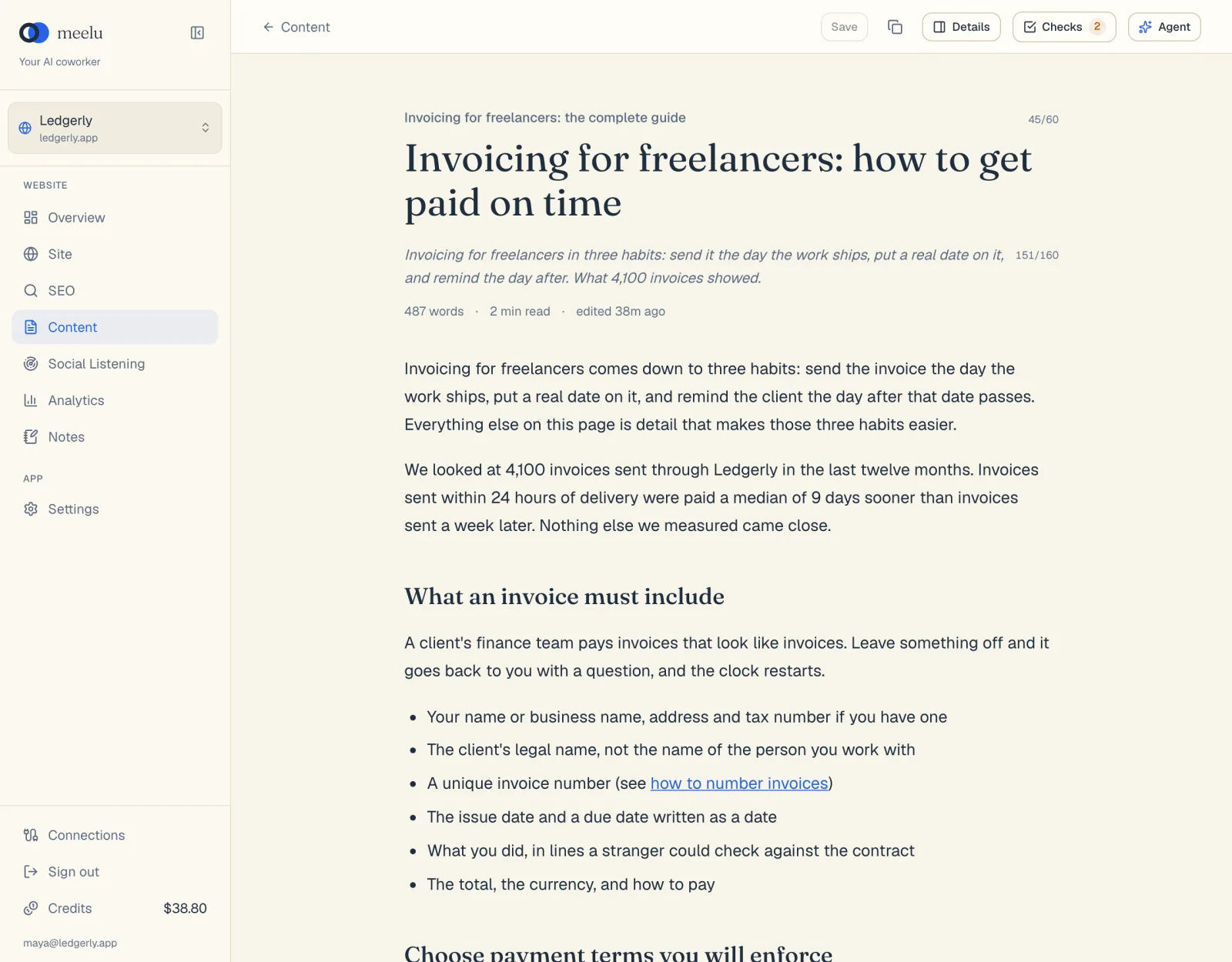
- 1Save the piece
- 2Copy markdown, to paste into your site
- 3Details: warnings and Delete piece
- 4Checks: readability, similarity, AI detector, page rules
- 5Agent: ask the writer to change the piece
- Content with a back arrow, on the left, takes you back to the list.
- Edit and Preview, next to it, switch the body between writing and reading. In Preview the body cannot be changed, and clicking a link opens it in a new window. Links to your own pages, such as
/blog/invoice-terms, open on your website. - The save status shows what Meelu is doing with your changes: Unsaved, Saving…, Saved with the time, or Could not save.
What each button does
| Button | What it does |
|---|---|
| Save | Saves now instead of waiting. It is active only when there are unsaved changes or the last save failed. |
| Copy markdown (the copy icon) | Saves the piece, then copies the whole piece to your clipboard as Markdown. A check mark shows when it is copied. See Publishing by hand. |
| Details | Opens or closes the details panel on the right. |
| Checks | Opens or closes the checks panel on the right. The number on it is how many check results are still open. See Checks. |
| Agent | Opens a chat with the agent about this piece. Desktop app only. |
The page fields
At the top of the page are three fields. Click any of them and type.
- Title: the small line at the very top. The counter next to it, such as
48/60, turns orange when the title is longer than 60 characters, because search results cut longer titles. - Headline (H1): the large headline. This is the H1, the main heading on the page.
- Meta description: the line in italics. The counter turns orange when it is shorter than 70 or longer than 160 characters.
Under them you see the word count, the reading time and when the piece was last edited.
If you leave the title empty, Meelu uses the H1 as the title when it saves.
The body
Below the page fields is the body. Type straight into it.
- Markdown shortcuts work. Type
#and a space for a heading, or-and a space for a list. - Find in the body: press Cmd+F (Ctrl+F on Windows) to search the body, in Edit or Preview. Every match is highlighted. Press Enter for the next match, Shift+Enter for the previous one, and Esc to close the search. It does not search the page fields or inside HTML blocks.
- The body starts after the H1. Use headings level 2 and 3 for your sections. The page's H1 is its own field, so do not add a second one in the body.
- Add an image or GIF, under the body, lets you pick an image from your computer. You can also paste an image or drag one into the text. JPEG, PNG, WebP and GIF files work, up to 5 MB each.
- Add HTML, under the body, adds a block of HTML for what Markdown cannot do, such as a table, a callout box or a video embed. Type or paste the HTML, then click Preview on the block to see it rendered. Click Edit HTML to change it, or the bin icon to remove it. HTML that the agent writes, or that you paste into the Markdown, shows up as the same kind of block. The block is saved and copied exactly as written. Scripts inside it do not run in the editor.
The selection menu
Select some text in the body and a small menu appears under it.
| Button | What it does |
|---|---|
| Bold | Makes the selected text bold. |
| Italic | Makes the selected text italic. |
| Heading | Turns the line into a level 2 heading. |
| Subheading | Turns the line into a level 3 heading. |
| Bullet list | Turns the lines into a bulleted list. |
| Numbered list | Turns the lines into a numbered list. |
| Quote | Turns the text into a quote block. |
| Link | Asks for a web address and links the selected text to it. Leave the address empty to remove a link. |
| Image | Adds an image from your computer. |
In the desktop app, the menu also has quick rewrites for the selected text:
| Button | What it does |
|---|---|
| Rephrase | Says the same thing in fresh words. |
| Shorter | Makes it shorter without losing the point. |
| Longer | Adds a little more detail in the same voice. |
| Simpler | Uses simpler words so a hurried reader gets it at once. |
| Formal | Makes it more formal and precise. |
| or say what to change… | Type your own instruction and press Enter, or click the arrow. |
The agent changes only the text you selected. Its rewrite arrives as a proposed change for you to review.
Reviewing changes from the agent
The agent never changes your body text without asking. When it rewrites something, the editor switches to review mode. A bar at the top says how many changes are proposed and why, for example 3 changes proposed · Fix for: Long sentence.
Removed words show in red and crossed out. New words show in green.
| Button | What it does |
|---|---|
| Keep | Accepts this one change. |
| Discard | Rejects this one change and keeps your original text. |
| Keep all | Accepts every change at once. After you decide on some, it reads Keep the rest. |
| Discard all | Rejects every change still waiting. |
When every change is decided, the editor goes back to normal and saves.
Working with the agent on a piece
In the desktop app, click Agent in the top bar. A chat opens for this piece. The agent sees the current title, H1, meta description, slug, target keyword, body and any open check results.
- Ask it to change something and it revises the whole piece. Changes to the body arrive as proposed changes, marked From the conversation. Changes to the title, H1, meta description, slug or target keyword go straight into the fields.
- Ask it a question and it answers in the chat without rewriting anything.
The chat suggests these prompts:
| Prompt | What it asks for |
|---|---|
| Fix all N flagged issues | Fixes every open check result in one pass, keeping the facts and structure. It shows only when there are open results. |
| Better keyword and links | Checks the target keyword against your search data and the internal links against your crawled pages, then improves both. |
| Tighten the opening | Tightens the first paragraph and keeps every fact. |
| Is anything unclear? | Points out anything unclear or unsupported. It answers and does not rewrite. |
If you close the chat and click Agent again, the same chat opens again. See Working with the agent.
Autosave
Meelu saves the piece on its own a moment after you stop typing. You do not have to click Save. Meelu also saves before you copy the markdown or run the checks, and when you leave the editor.
If a save fails, the status says Could not save. Point at it to see why, then click Save to try again.
The details panel
Click Details to open the panel on the right.
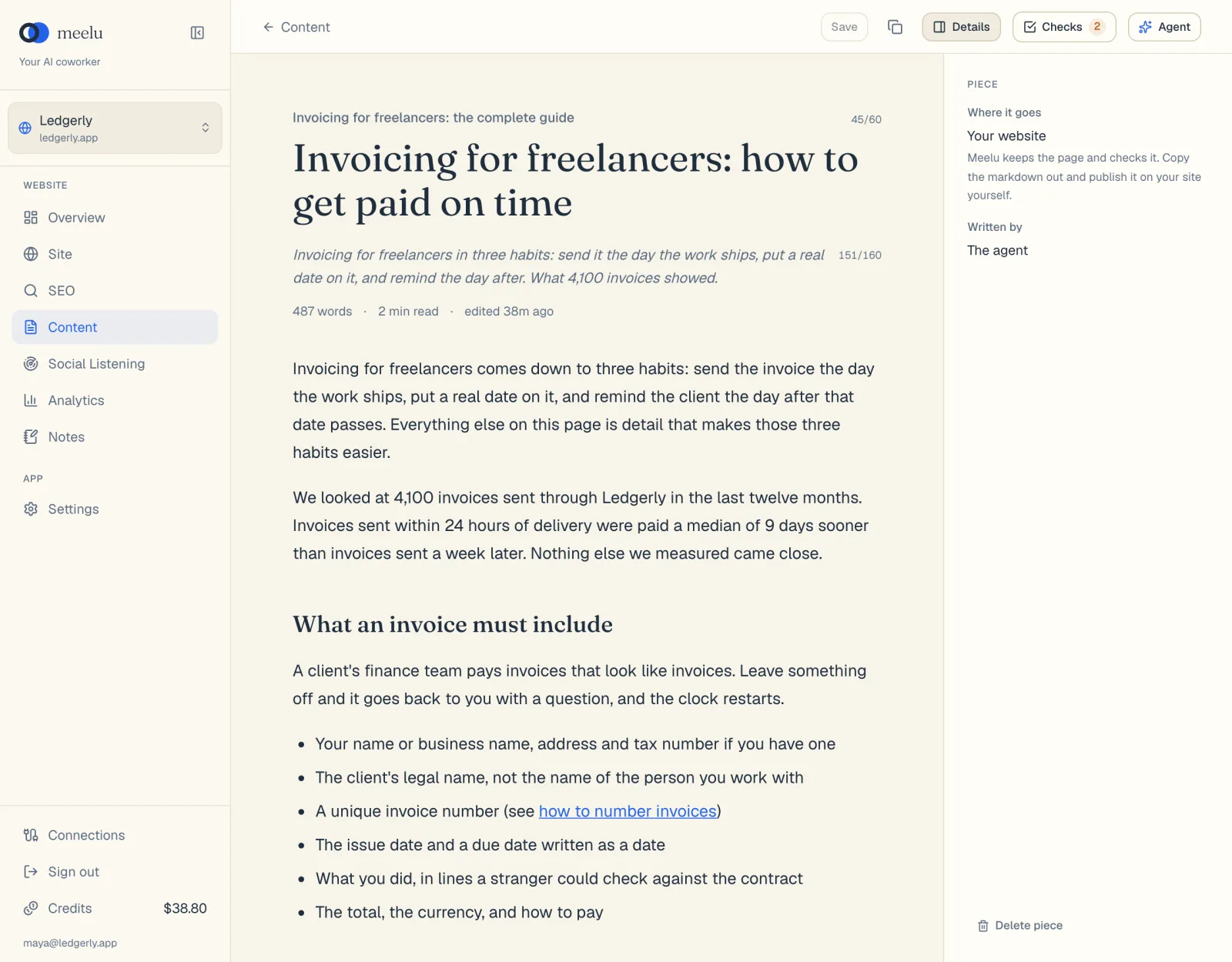
- Where it goes: always Your website. Meelu keeps the page and checks it. You copy it out and publish it yourself.
- Written by: You if you started the piece, or The agent if the agent wrote it.
- Page warnings: the warnings from the last save, if there are any. See Checks.
| Button | What it does |
|---|---|
| Delete piece | Asks you to confirm, then deletes the piece for good and takes you back to the list. |