Working with the agent
How to start a task, use prompt chips, follow Meelu's work and stop it when you need to.
Meelu's agent is the AI coworker inside the app. It reads your website and your data, answers questions and prepares suggestions. You work with it through tasks.
A task is one conversation with Meelu about one piece of work, such as "what is broken on my site?" or "plan a page for this keyword cluster". A task belongs to the website you were on when you started it.
Start a task
There are three ways to start one:
| Where | How |
|---|---|
| Ask Meelu (the sparkle button) | At the top right of most desks. Opens an empty task about that desk, with prompt chips to pick from. |
| Task cards | Some desks show ready-made tasks, like Start a task on the SEO desk. One click starts the task and sends the question. |
| Your prompts | Prompts you saved yourself. One click starts the task with your saved text. See Your prompts. |
The task panel title tells you which desk the task is about, for example Ask — Site or Ask — Search.
Prompt chips
A prompt chip is a ready-made question shown as a small button in an empty task, such as What is broken on the site? or Striking distance keywords. Clicking one sends a carefully written request behind the scenes. The chip's short label is what appears in the chat.
Chips are a good way to learn what a desk can do. When you know what you want, type it in your own words instead.
Writing a good request
Meelu does better with a clear goal than with a vague one. Some tips:
- Name the thing. "Why did /pricing lose clicks last month?" works better than "why is traffic down?".
- Say what you will do with the answer. "I want to pick three pages to improve this week" helps Meelu shape the answer.
- Ask for the evidence. Meelu shows its sources by default, but you can ask "which numbers is that based on?" at any point.
- Correct it once, then save a note. If Meelu gets something wrong about your business, tell it, then save a note so every future task knows.
The task panel
The panel slides in from the right. Here is what you see in it:
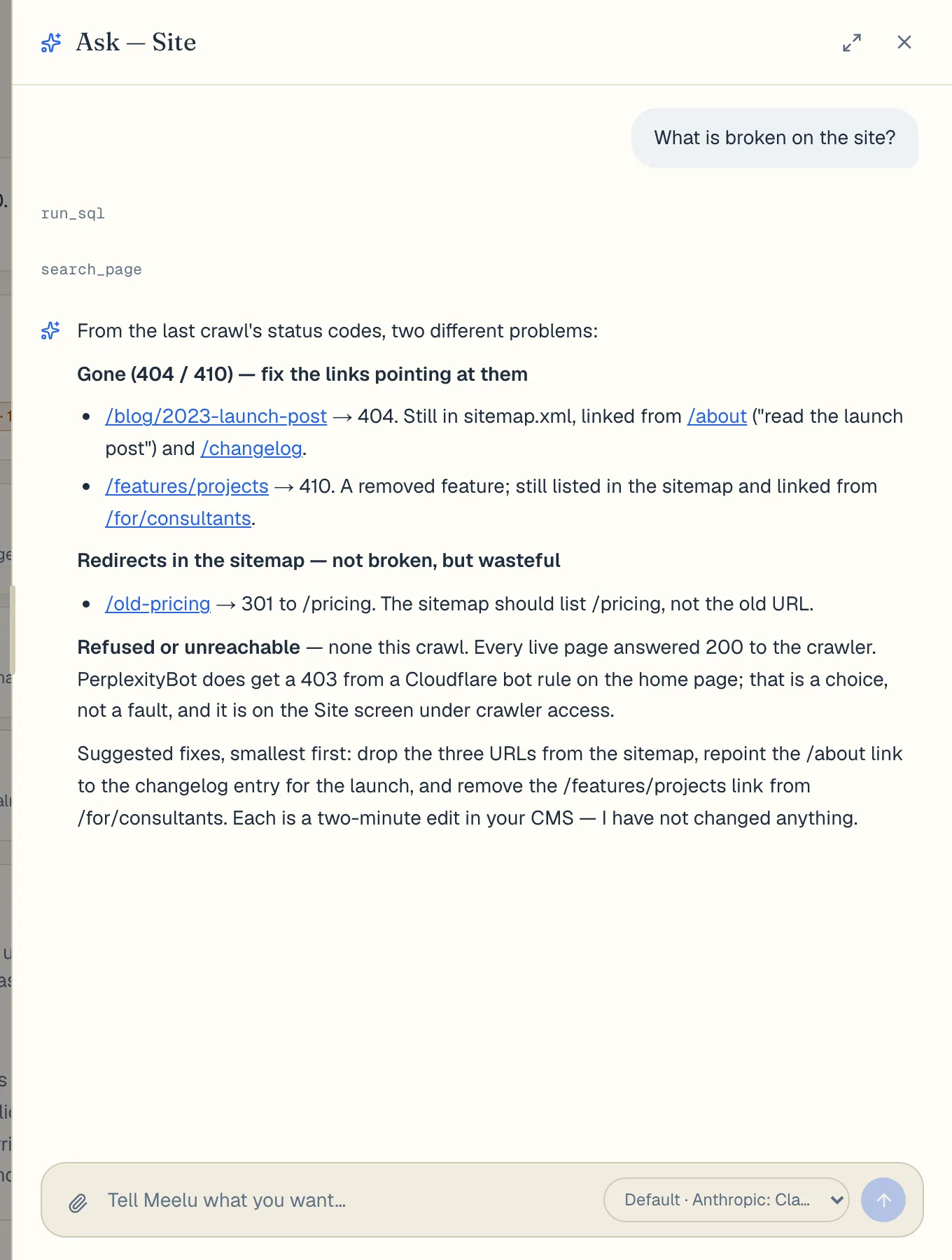
- Your messages on the right, and Meelu's replies on the left.
- Short grey lines when Meelu reads or does something, so you can follow its work.
- Progress counts for long steps, such as "3/20 reviewed".
- Charts, when the answer needs one.
- Permission prompts when Meelu wants to save or change something. See Approving what Meelu does.
- Links to Meelu screens, such as a content piece or a crawled page. Click one to open it in the app.
You can reply as often as you like. The task remembers the whole conversation.
Some tasks end on their own once they have made what you asked for. Then the panel says Task complete — this chat is closed. Everything the task made is on the desk. Start a new task for the next thing.
Several tasks at once
You can run more than one task. Each keeps going when you close its panel or move to another desk.
- When two or more tasks are open, tabs at the top of the panel let you switch between them. Each tab has a status dot.
- The Tasks button in the bottom-right corner lists every task for this website, newest first, with its status: running, your turn, done or failed.
- When a task is waiting for your answer, the Tasks button shows needs you.
Tasks belong to a website. When you switch website, you see that website's tasks. The task list is cleared when you quit Meelu.
Adding a file
Click the paperclip to attach a file to your message, such as a list of keywords or a brief. You can attach up to 5 files per message, each up to 2 MB.
Stopping a task
While Meelu works, the send button turns into a square Stop button. Click it to stop the current step. You can then type a new instruction in the same task.
To get rid of a task completely, open the Tasks list and click the X on its row.
What each button does
| Button | What it does |
|---|---|
| Ask Meelu (sparkle) | Starts a new task about the desk you are on. |
| Prompt chip | Sends a ready-made request. |
| Paperclip | Attaches up to 5 files to your next message. |
| Model menu | Picks the AI model for this task. See AI models. |
| Send (arrow) | Sends your message. Pressing Enter does the same. Shift+Enter adds a new line. |
| Stop (square) | Stops what Meelu is doing right now. |
| Save as prompt | Appears when you hover over a message you typed, on desks that support saved prompts. Saves it as one of your prompts. |
| Maximize / Restore | Makes the panel fill the window, or brings it back to its normal width. |
| Close chat (X) | Hides the panel. The task keeps running. |
| Panel edge | Drag the left edge of the panel to make it wider or narrower. Drag it far to the right to close it. |
| All tasks | Opens the list of all tasks for this website. |
| Remove task (X in the list) | Removes the task from the list. |
The agent needs the desktop app
Tasks run on your computer, inside the Meelu app. See Why Meelu is a desktop app.