Pages
Search what your pages say, filter and sort them, and read what the page kinds mean.
The Pages screen lists every page the crawl has read. Use it to find out whether a topic is already covered before you write about it again, and to spot pages that need work.
Open it from the main Site screen by clicking Pages.
Search what your pages say
The large search box at the top searches the text inside your pages, not their addresses. Type a topic in plain words, such as "hiring warehouse staff in Nashik", and click Search.
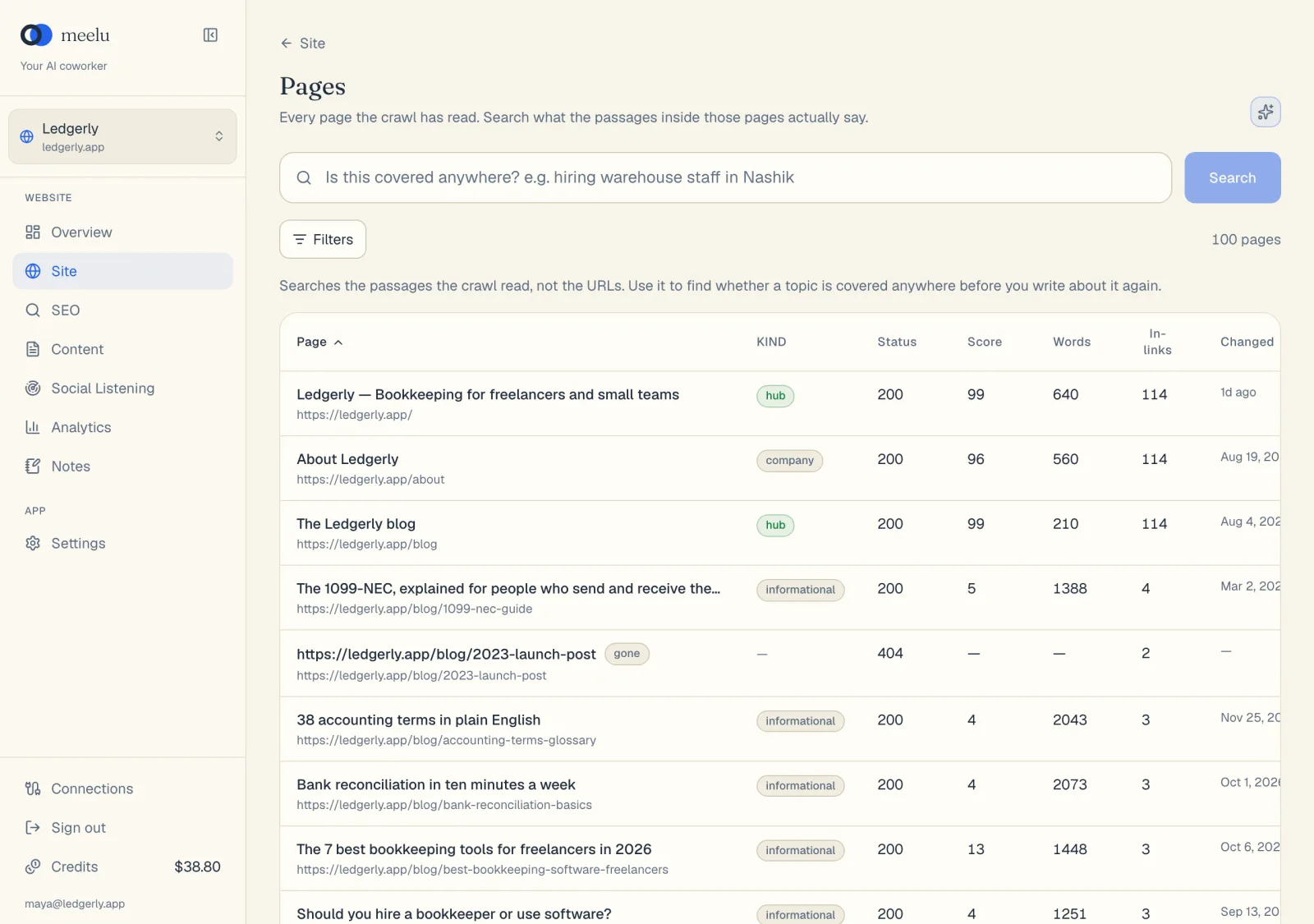
- 1Search what your pages say, by meaning
- 2Filters narrows the table
- 3Ask Meelu
Meelu searches by meaning, not only by exact words. It shows up to 10 matching pages. Under each page you see the passage that matched, and the heading it sits under.
- If you see a close match, you may already have a page on this topic. Improve that page instead of writing a new one.
- If you see Nothing on the site covers that, that is useful too. It means the topic is a gap, not a duplicate.
To go back to the full list, clear the search box.
The table
Click any row to open that page's detail view.
| Column | What it shows |
|---|---|
| Page | The page title and address. A grey badge means the page was skipped as not worth studying (see Crawling). |
| Kind | What the page is for. See Page kinds below. |
| Status | The answer your server gave, such as 200 for OK or 404 for not found. |
| Score | The page's link score. It shows how well linked the page is inside your site. Your best-linked page scores 100. |
| Words | How many words of text the page has. |
| In-links | How many links from your other pages point at this page. |
| Changed | When the text of the page last really changed. |
Click a column header to sort by it. Click again to flip the order. You cannot sort search results, because they are ordered by how well they match.
The table shows up to 100 pages at a time. The count at the right shows how many are listed. On a large site, use filters to narrow the list.
Page kinds
After a crawl, Meelu reads each page and decides what it is for. This label shows in the Kind column. If Meelu is not sure, the column shows a dash.
| Kind | What it covers |
|---|---|
| money | Pages you want visitors to act on: products, services, tools, pricing, sign-up, booking, location pages, the home page and landing pages. |
| hub | Category, collection, blog index and topic overview pages. Their job is to send visitors on to other pages. |
| informational | Blog posts, guides, glossary entries, news and comparisons. |
| support | FAQ, documentation, help center, shipping and returns. |
| company | About, team, careers, press, testimonials and contact. |
| legal | Privacy, terms, cookies and disclaimers. |
| utility | Login, cart, checkout, search results, filters, pagination, tag or author archives and thank-you pages. |
Page kinds matter because many suggestions use them. For example, the Send authority to money pages strategy on the Internal links screen looks for links from informational pages to money pages.
Filters
Click Filters to open the filter panel. Then pick a filter from + Add filter. You can add as many as you like. Each active filter shows as a small tag above the table. Click the x on a tag to remove it, or Clear all to remove every filter.
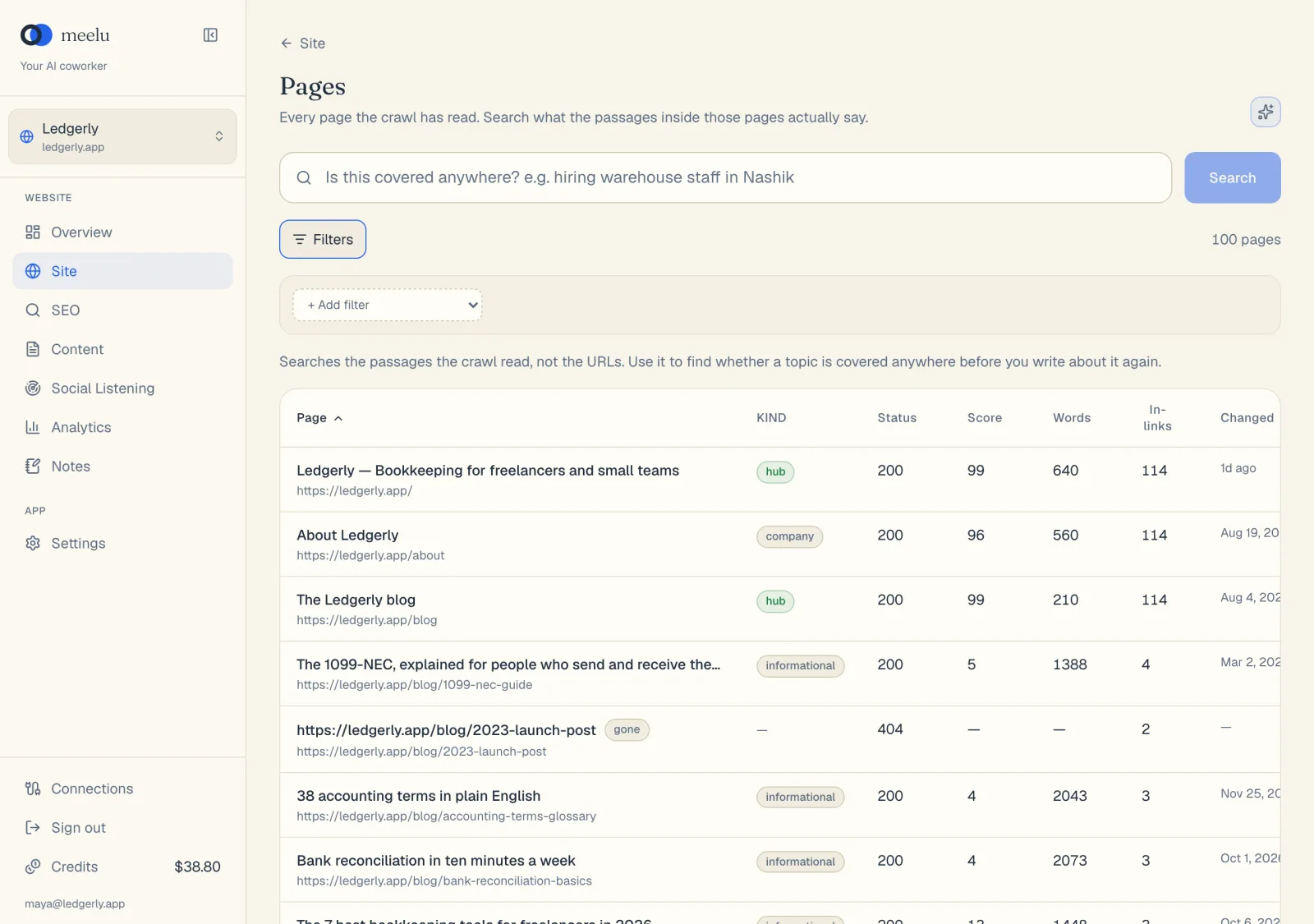
Filters also apply to a search, so you can search only inside your blog posts, for example.
| Filter | What it finds |
|---|---|
| Kind | Pages of one kind, such as money or hub. |
| Status | OK (200), redirects, gone (404/410), blocked (401/403/429), server error (5xx), unreachable, or any failure. |
| Crawl stage | Where the page is in Meelu's reading. See Crawl stage. |
| Article format | How-to, listicle, comparison or case study. |
| Missing field | Pages with no title, meta description, H1 or body text. |
| Language | Pages in one language, such as en. |
| URL contains / Title contains / Meta description contains / Body text contains | Pages whose address, title, meta description or text includes the words you type. |
| Words | Pages with a word count between a minimum and a maximum. |
| Inbound links | Pages with a number of in-links between a minimum and a maximum. |
| Clicks from home | Pages a given number of clicks away from your home page. |
| Crawled / Content changed / Published | Pages crawled, changed or published between two dates. |
| In sitemap | Pages your sitemap does or does not list. |
| Orphan | Pages no other page links to. |
| Noindex | Pages that tell search engines not to show them. |
| Skipped as shallow | Pages Meelu skipped as legal, pagination, thin or redirect. |
| Blocked by robots | Pages your robots.txt blocks. |
| Canonical elsewhere | Pages whose canonical points at another address. A canonical tells search engines which address is the main copy of a page. |
| Redirects | Pages that send visitors elsewhere. |
| Needs audit | Pages that loaded fine and have content, so the technical checks can look at them. |
Useful filter combinations
- Kind money plus Inbound links max 2: important pages that get almost no links.
- Missing field meta description: pages where Google writes its own snippet.
- Words max 300 plus Kind informational: thin articles worth expanding or merging.
What each button does
| Button | What it does |
|---|---|
| Search | Searches the text of your pages for the topic you typed. |
| Filters | Opens or closes the filter panel. The number shows how many filters are active. |
| + Add filter | Adds a new filter row. |
| x on a filter | Removes that one filter. |
| Clear all | Removes every filter. |
| Ask Meelu (sparkle icon) | Opens a chat about your pages. If you typed a search, Meelu sees it too. Desktop app only. See Asking the Site desk. |
| Site (back link) | Returns to the main Site screen. |