Technical SEO
Run the static and rendering checks, read what they found, and decide what to fix or turn down.
The Technical SEO screen lists problems that stop search engines and AI tools from reading your site well. Examples are a missing sitemap, a robots.txt that blocks Google, or content that only appears after JavaScript runs.
Open it from the main Site screen by clicking Technical SEO.
Meelu points, you fix
Meelu never changes your site. Each check names the problem and the pages it found it on. You fix it on your site, or turn it down if it does not apply to you.
The three tabs
Each tab looks at your site in a different way. The number on each tab is how many checks are listed there.
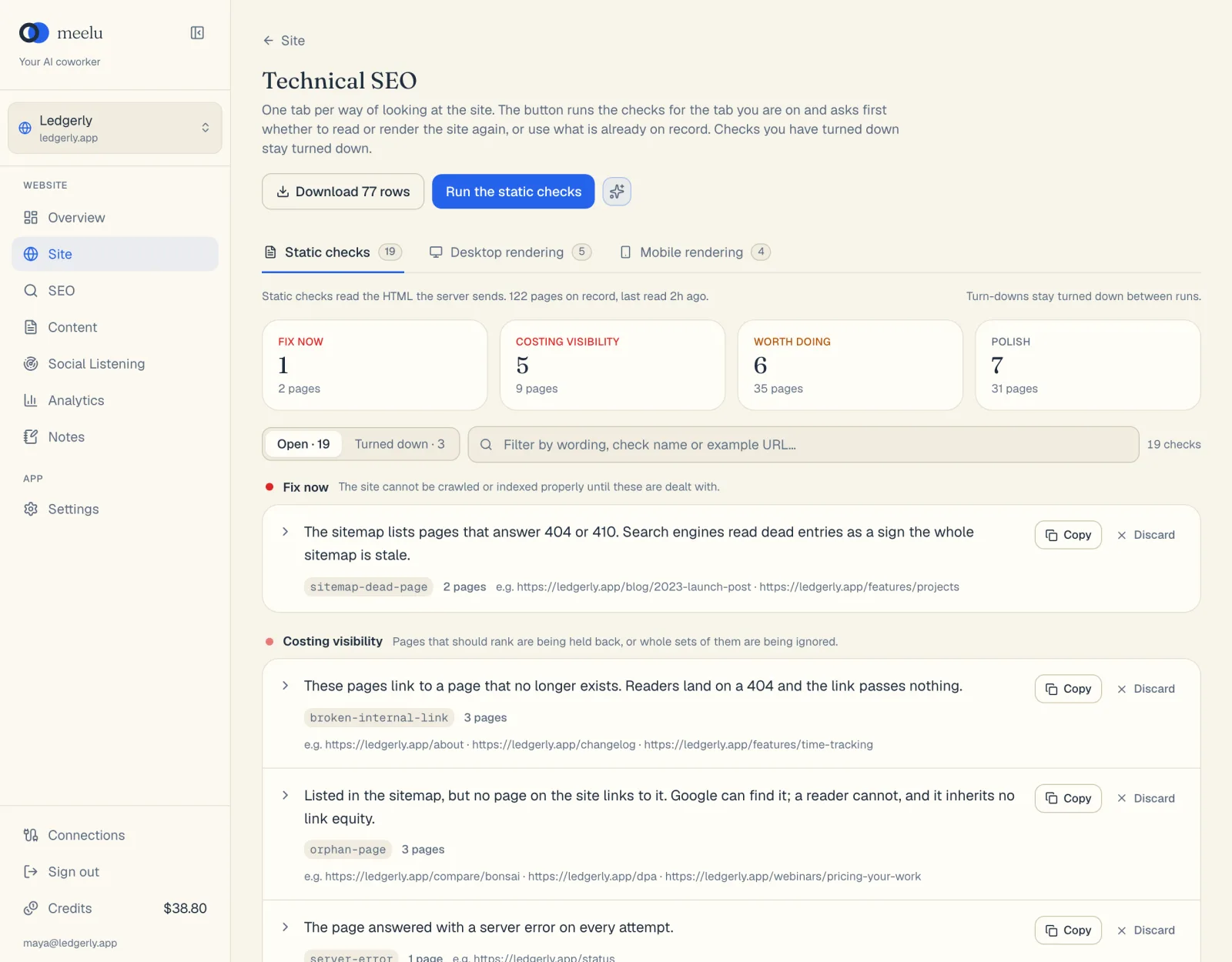
- 1Static checks: what the crawl read
- 2Desktop rendering: the page as a desktop browser shows it
- 3Mobile rendering: the page as a phone shows it
- 4Download the rows as a file
| Tab | What it checks |
|---|---|
| Static checks | The raw HTML your server sends, as the crawl read it. This is what a crawler sees if it does not run JavaScript. |
| Desktop rendering | Meelu loads each page in a real browser as Googlebot, Google's crawler, and compares it with the raw HTML. |
| Mobile rendering | Meelu loads each page at phone width as Googlebot smartphone, and compares it with the desktop render and the raw HTML. |
Rendering means loading a page in a real browser so its JavaScript runs, the way a visitor sees it. Many AI crawlers never run JavaScript. So if your text, links or tags only appear after rendering, those crawlers miss them.
Under the tabs, a line tells you how fresh the data is. For example, how many pages are on record and when they were last read, or how many pages have been rendered and how many changed since.
Running the checks
The main button changes with the tab: Run the static checks, Run the desktop checks or Run the mobile checks. Checks do not run on their own. Click the button after a crawl or after you change your site.
Static checks
When you click Run the static checks in the desktop app, Meelu asks Has the website changed? Reading the whole site again takes a while, so only do it if something changed.
| Button | What it does |
|---|---|
| Yes — read the site again, then check | Crawls the site again, then runs the checks on the fresh pages. |
| No — check the pages already read | Runs the checks on the pages from the last crawl. Quick. |
| Not now | Closes the question without running anything. |
Desktop and mobile checks
Rendering works only in the desktop app. When you click Run the desktop checks or Run the mobile checks, Meelu asks Render the pages again? Rendering takes a few seconds per page.
You can narrow the render first:
- Only this page (paste a URL): render just one page. Useful after you fix one page.
- Up to N pages: render no more than this many pages. Useful for a quick sample of a big site.
| Button | What it does |
|---|---|
| Yes — render again, then check | Renders the pages, then runs the checks. The label changes to match your choice, such as "render that page" or "render up to 50 pages". |
| No — check the pages already rendered | Runs the checks on the last render. Greyed out if nothing has been rendered yet. |
| Not now | Closes the question. |
Pages that have not changed since the last render are left alone, so a second render is faster.
While a crawl or render runs, a progress bar shows how far it has got. The main button changes to show the progress. Click it to stop. Meelu keeps the pages already read or rendered.
Reading the results
Severity
Four tiles at the top sort the checks by how much they matter. Each shows how many checks and how many pages fall in it. Click a tile to show only those checks. Click it again to show all.
| Severity | What it means |
|---|---|
| Fix now | Your site cannot be crawled or indexed properly until these are dealt with. |
| Costing visibility | Pages that should rank are held back, or whole sets of pages are ignored. |
| Worth doing | Real gains, none urgent. Work through them when the ones above are clear. |
| Polish | Small, cheap fixes. Do not let a long list of these hide anything above. |
Where to start
Work from the top down. One Fix now check can matter more than fifty Polish checks. If you are not sure, ask Meelu with the What should I fix first? prompt.
Each check
Each check shows:
- A plain-language description of the problem.
- The check's short name, such as
sitemap-missingorjs-only-content. - Site-wide if it is one finding for the whole site, or how many pages it found the problem on.
- A few example addresses.
Click a check to open it. You then see its Check name, its Severity with the explanation, its Scope, and the list of pages it flagged. The list shows up to 200 pages. For the full list, use Copy or download the CSV.
Open and Turned down
The switch next to the search box shows Open checks or Turned down checks, with a count for each. Turned-down checks stay turned down when you run the checks again.
Use the search box, Filter by wording, check name or example URL…, to find a check fast.
Turning down a check
Some checks do not apply to your site. For example, you may block an AI crawler on purpose. In that case, turn the check down so it stops showing as open.
Click Discard on the check
A box opens: Discard the whole check. It turns down every page the check flagged in one go, not only the examples shown.
Say why (optional)
Type why the check does not apply. Your reason shows against the check on the Turned down list, so you remember later.
Confirm
Click Yes — discard to turn it down, or Not yet to keep it open.
To turn down only some pages, open the check and click Discard next to each page you want to leave out.
To bring a check or a page back, switch to Turned down and click Restore.
What each button does
| Button | What it does |
|---|---|
| Static checks / Desktop rendering / Mobile rendering | Switch between the three ways of checking your site. |
| Run the static checks (and desktop, mobile) | Runs the checks for the tab you are on. Asks first whether to read or render the site again. |
| Download N rows | Downloads the checks you are looking at as a CSV file, for the current tab, state, severity and search. Useful to share with a developer. |
| Ask Meelu (sparkle icon) | Opens a chat about these checks. Desktop app only. See Asking the Site desk. |
| Export issues to your issue tracker (task card) | Meelu plans one issue per kind of check for the GitHub, Linear or Jira project you pick, skips titles already in the tracker, and files only the issues you approve. Connect the tracker under Connections first. |
| Severity tiles | Show only checks of that severity. Click again to show all. |
| Open / Turned down | Switch between checks still open and checks you turned down. |
| Copy | Copies the problem, the check name and every page it flagged. Paste it into a ticket or a message to your developer. |
| Discard (on a check) | Turns down the whole check, after you confirm. |
| Discard (on a page) | Turns down the check for that one page. |
| Restore | Brings a turned-down check or page back to open. |