Internal links
Review Meelu's internal link and pillar page suggestions.
The Internal links screen lists the links and pillar pages Meelu suggests. Pages that are hard to reach (orphans, unreachable pages and pages four or more clicks deep) are counted on the Site desk itself.
Open it from the main Site screen by clicking Internal links. It has two tabs:
- Link suggestions: internal links Meelu suggests you add or remove.
- Pillar pages: topics that need one main page to tie them together.
The number on each tab is how many items are waiting for you. This screen is worked out when a crawl ends, so run a crawl first.
You make every change yourself
Meelu never adds, removes or changes a link on your site, and never creates a page. Each suggestion tells you what to change and where. You decide whether to do it, and you make the change in your own website editor.
Link suggestions
This tab lists internal links Meelu thinks you should add or remove. There are two kinds:
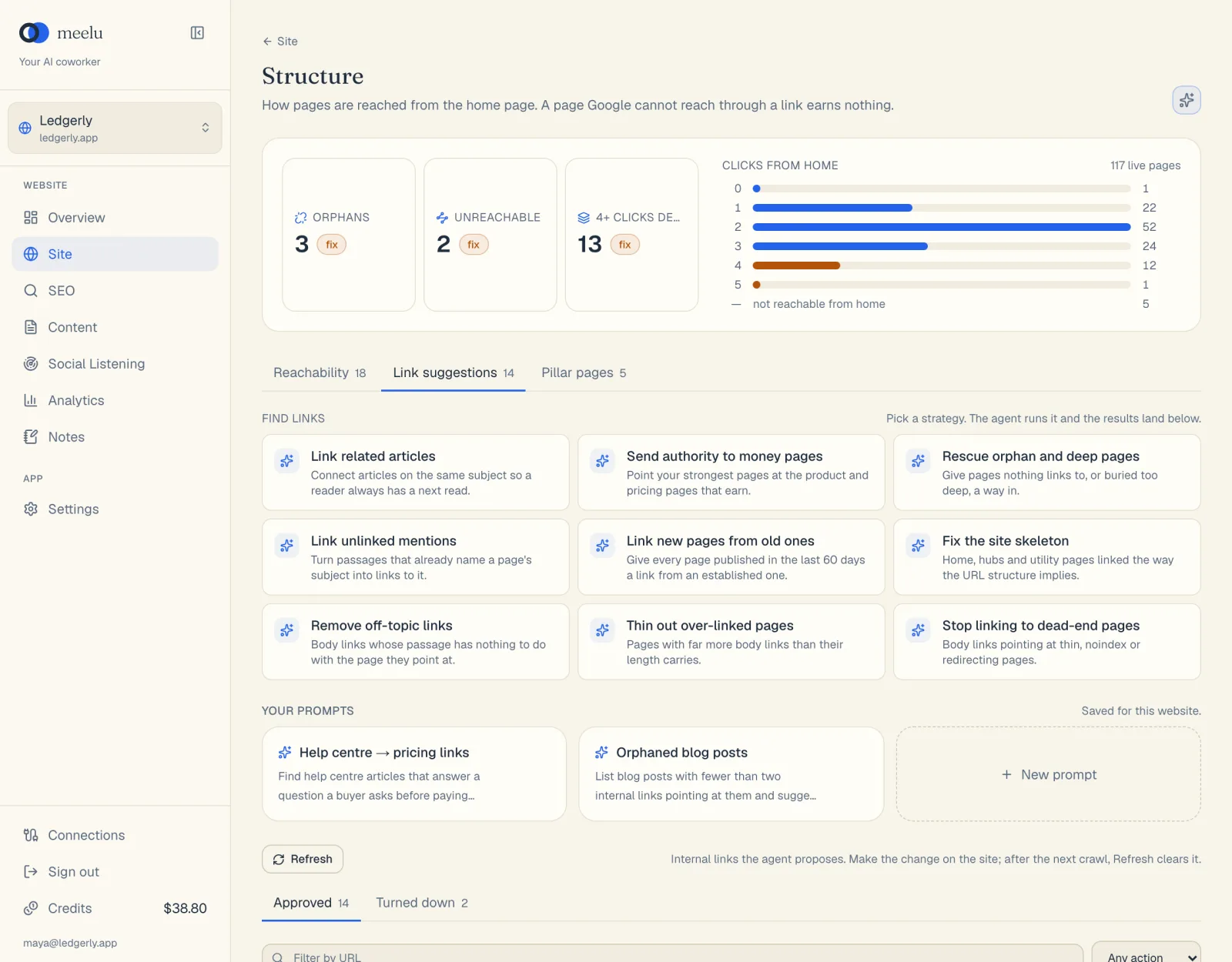
- 1Each card runs one strategy for finding links
- 2New prompt saves a strategy of your own
- 3Refresh clears suggestions you already made on the site
- 4Approved and Turned down sort the suggestions
- Add link: add a link from one page to another.
- Remove link: remove a link that hurts more than it helps.
Ask Meelu to find links
In the desktop app, the top of the tab shows Find links: a set of ready-made strategies. A strategy is a focused way of looking for links. Click one and Meelu starts working on it right away in a task panel. When it is done, the suggestions it found land in the list below.
| Strategy | What Meelu looks for |
|---|---|
| Link related articles | Articles on the same subject, so a reader always has a next read. |
| Send authority to money pages | Links from your strongest pages to the product and pricing pages that earn. |
| Rescue orphan and deep pages | A way in for pages nothing links to, or that are buried too deep. |
| Link unlinked mentions | Passages that already name a page's subject, turned into links to that page. |
| Link new pages from old ones | A link from an established page to every page published in the last 60 days. |
| Fix the site skeleton | Home, hub and utility pages linked the way your address structure implies. These links often belong in your menu or footer. |
| Remove off-topic links | Body links whose passage has nothing to do with the page they point at. |
| Thin out over-linked pages | Pages with far more links in the text than their length can carry. |
| Stop linking to dead-end pages | Links pointing at thin, noindex or redirecting pages. |
The Link unlinked mentions strategy also uses your Search Console data, when you have it, to find pages close to page one in Google.
Your prompts
Under the strategies is Your prompts. Here you can save your own instructions for this website and run them with one click.
| Button | What it does |
|---|---|
| New prompt | Opens a form. Give the prompt a Name and write the Prompt. It is saved for this website only. |
| A saved prompt card | Sends that prompt to Meelu as it is and starts the task. |
| Edit (pencil icon) | Changes a saved prompt. Shows when you hover over the card. |
| Delete (bin icon) | Deletes a saved prompt after you confirm. |
How Meelu picks suggestions
Meelu does not show you every idea it has. Each idea is first screened, then reviewed, then ranked against the others. Only the ones that pass every step reach your list. Meelu also avoids suggesting too many new links on one page, and avoids suggesting the same thing twice.
Reading a suggestion
Each row shows:
- The kind, Add link or Remove link.
- The page the link is on, an arrow, and the page it points to.
- Meelu's reason, in plain words.
- The passage: the paragraph on the first page where the link should go, or where the link to remove sits. For a removal, the link text is highlighted.
Click a row to open it fully. You then also see:
- Screen: how confident Meelu's screening was, such as "passed at 86% confidence".
- Rank: how this suggestion scored against the others. Higher is better.
- Match: how closely the passage matches the target page.
If a row says No passage pinned, place the link (or find it) anywhere in the body text.
Acting on a suggestion
Read the reason and the passage
Decide whether the link would help a reader. Ask yourself: would I click this link here?
Open the page at the passage
Click Open at passage. Your page opens in a new tab, scrolled to the passage and highlighted. This works in Chrome, Edge and Safari.
Make the change on your site
In your website editor, add or remove the link. You choose the exact link text. Use Copy passage if it helps you find the spot.
Crawl again, then click Refresh
After your next crawl, click Refresh. Meelu clears every suggestion your site has caught up with.
If you do not want a suggestion, click Turn down. It moves to the Turned down tab. Meelu remembers it and will not suggest the same link again. Changed your mind? Open Turned down and click Restore.
Filtering the list
- Approved and Turned down tabs: Approved holds the suggestions that passed Meelu's review and wait for you. Turned down holds the ones you said no to.
- Filter by URL: show only suggestions that involve a page address you type.
- Any action: show only Add link or only Remove link suggestions.
- Previous and Next: move between pages of results when there are more than 50.
What each button does
| Button | What it does |
|---|---|
| A strategy card | Starts Meelu on that strategy. Results land in the list. Desktop app only. |
| Refresh | Clears suggestions your site has caught up with: the link now exists, the link is already gone, or a page left the crawl. Use it after a crawl. |
| Turn down | Says no to a suggestion. Meelu will not suggest it again. |
| Restore | Brings a turned-down suggestion back to Approved. |
| Delete (bin icon) | Deletes the suggestion for good, after you confirm. |
| Open at passage | Opens the page scrolled to the passage. |
| Copy passage | Copies the passage text. |
| Ask Meelu (sparkle icon, top right) | Opens a chat where you pick a strategy or write your own. Desktop app only. |
Pillar pages
A pillar page is one main page that introduces a topic and links to all the smaller pages about it. For example, a "Complete guide to email marketing" page that links to your ten posts on subject lines, timing and lists. Pillar pages help readers find their way, and help search engines see that your site covers the topic in depth.
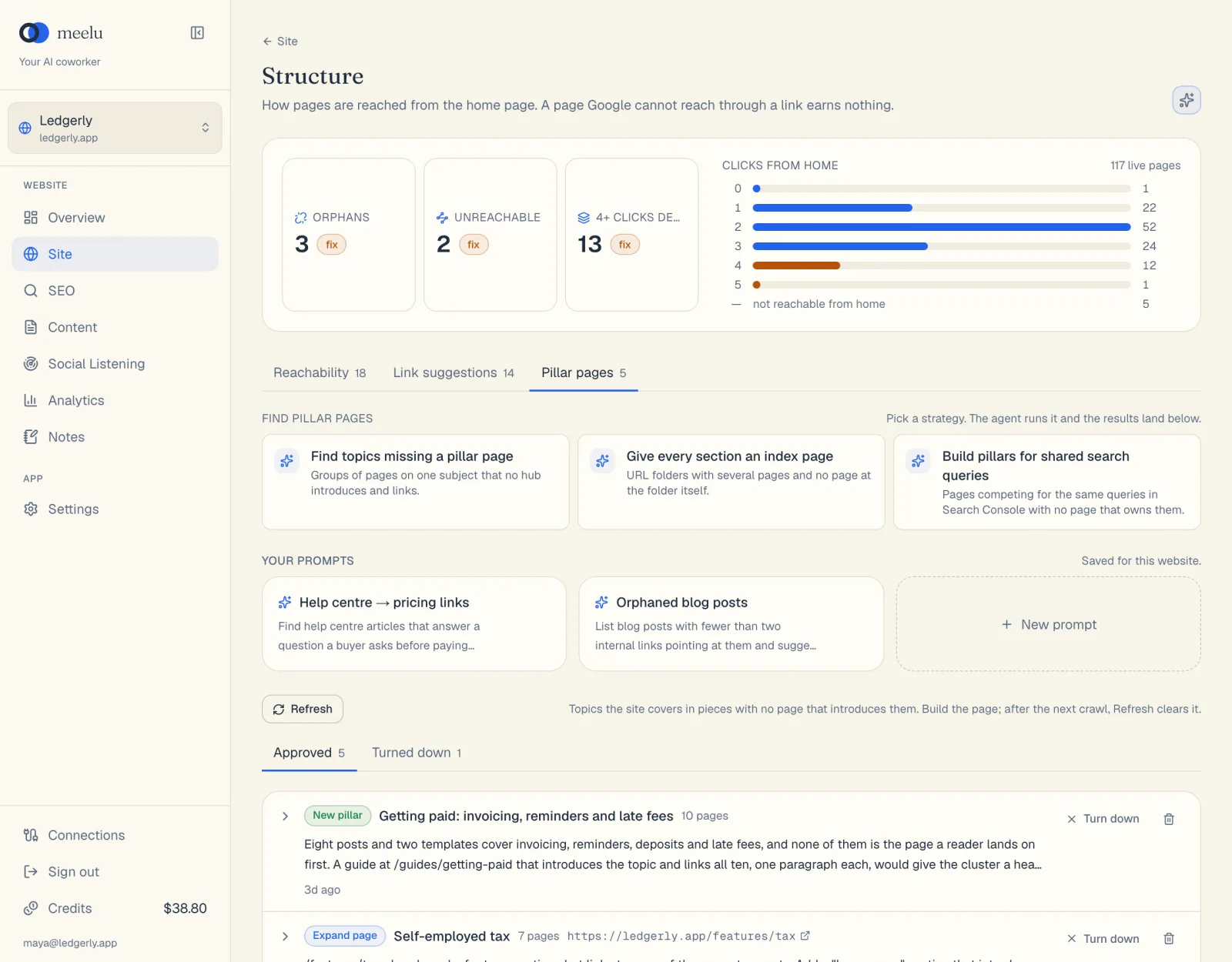
This tab lists topics your site covers in pieces, with no page that ties them together. There are two kinds:
- New pillar: no page covers the topic. Meelu suggests you create one.
- Expand page: one page already covers part of the topic. Meelu suggests you grow that page into the pillar. The page address shows next to the topic.
Meelu suggests, you decide
When several pages split one topic, Meelu suggests a pillar page, names the topic and says what each existing page adds. It does not merge, retitle or redirect those pages. Whether to build a new page, grow an old one or leave things alone is your call.
Ask Meelu to find pillar pages
In the desktop app, the top of the tab shows Find pillar pages with three strategies:
| Strategy | What Meelu looks for |
|---|---|
| Find topics missing a pillar page | Groups of pages on one subject that no hub page introduces and links. |
| Give every section an index page | Folders in your addresses, such as /guides/, with four or more pages and no page at the folder address itself. |
| Build pillars for shared search queries | Several pages getting search impressions for the same query, with none ranking well. This one needs Search Console data. |
Below the strategies is the same Your prompts section as on the Link suggestions tab.
Reading a pillar suggestion
Each row shows the kind, the topic, how many of your pages belong to it and Meelu's suggestion. The suggestion says what the pillar should cover and how it should link to the member pages.
Click a row to open it. You then see:
- Pages: every member page, with its title. Click one to open it.
- Cohesion: how closely the member pages belong together. Higher means a tighter topic.
- Screen: how confident Meelu's screening was.
- Rank: how this suggestion scored against the others.
Acting on a pillar suggestion
- Read the suggestion and open a few member pages.
- If you agree, write the pillar page (or expand the existing page) on your site. The Content desk can help you write it.
- Link the pillar to its member pages, and the member pages back to the pillar.
- After the next crawl, click Refresh. Meelu clears pillar suggestions your site has caught up with.
What each button does
| Button | What it does |
|---|---|
| A strategy card | Starts Meelu on that strategy. Results land in the list. Desktop app only. |
| Refresh | Clears pillar suggestions your site has caught up with: the hub now exists, or most of its pages left the crawl. |
| Approved / Turned down tabs | Switch between suggestions waiting for you and ones you said no to. |
| Turn down | Says no to a suggestion. Meelu will not suggest it again. |
| Restore | Brings a turned-down suggestion back. |
| Delete (bin icon) | Deletes the suggestion for good, after you confirm. |
| Previous / Next | Move between pages of results when there are more than 20. |
For more on how suggestions work across Meelu, see Suggestions.