Approving what Meelu does
How the permission prompt works, and what Allow, Always allow, Full access and No each mean.
Meelu can read your data freely. It can look at your pages, your Google numbers and your notes without asking. But whenever it wants to save, change or delete something in Meelu, it stops and asks you first.
Examples of things Meelu asks about:
- saving a content draft or a change to one
- saving a link suggestion or a report
- saving a note it offered to write down for you
- updating your profile after it interviewed you
Meelu never publishes on its own and never changes anything in your Google accounts. It posts on Reddit or LinkedIn, sends an email, publishes a Webflow item or files an issue only after you approve it. Publishing is always your call.
The permission prompt
When Meelu wants to save something, a box appears in the task panel that starts with Meelu wants to run, followed by the name of the action. Under that, a short line shows the main details, such as the title of the page it wants to save.
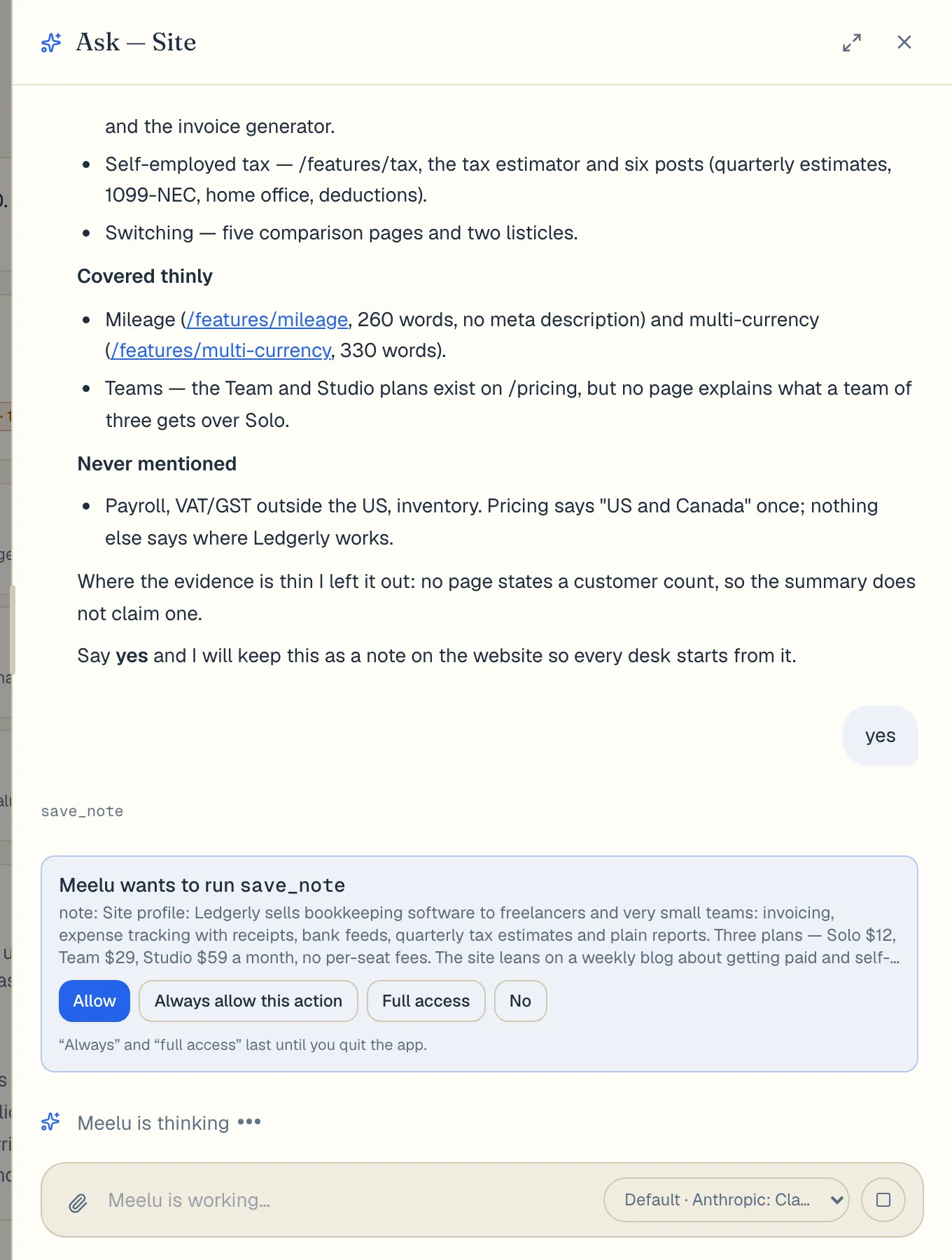
- 1Allow runs this one action
- 2Always allow this action for the rest of the task
- 3Full access allows every write in this task
- 4No refuses the action
Meelu waits until you answer. While it waits, the Tasks button in the corner says needs you, so you notice even if the panel is closed.
What each button does
| Button | What it does | When to use it |
|---|---|---|
| Allow | Lets this one action run. Meelu asks again next time. | The default. Use it while you are getting to know Meelu. |
| Always allow this action | Lets this kind of action run without asking again, until you quit the app. | When you trust a repeated step, such as saving each suggestion in a long review. |
| Full access | Lets every action run without asking, in every task, until you quit the app. | Only when you are watching closely and want Meelu to finish a long job without stopping. |
| No | Declines. Meelu does not try again. It says what it was going to do and stops. | When the action is wrong, or you want to change the request first. |
Always allow and Full access reset when you quit
Both last only until you quit Meelu. The next time you open the app, Meelu asks again. There is no way to turn them on permanently.
After you answer, the box shrinks to a single grey line that says whether the action was allowed or declined.
Answers from the Tasks list
You can also answer from the Tasks list in the bottom-right corner. When something needs you, the list shows how many items need your yes, with a Yes and a No button on each. These work the same as Allow and No.
Why Meelu asks
Meelu suggests, and you decide. Asking before every save keeps you in control of what ends up in your workspace. It also gives you a moment to check the details. If something looks off, click No and tell Meelu what to change. It will try again with your correction.
See Suggestions and evidence for how to judge what Meelu proposes.