A tour of the dashboard
Learn the sidebar, the website switcher, the Overview desk and the task panel where you work with Meelu.
Meelu's window has two parts. The sidebar on the left takes you between screens. The main area on the right shows the screen you picked. When you ask Meelu to do something, a task panel slides in from the right.
The sidebar
From top to bottom:
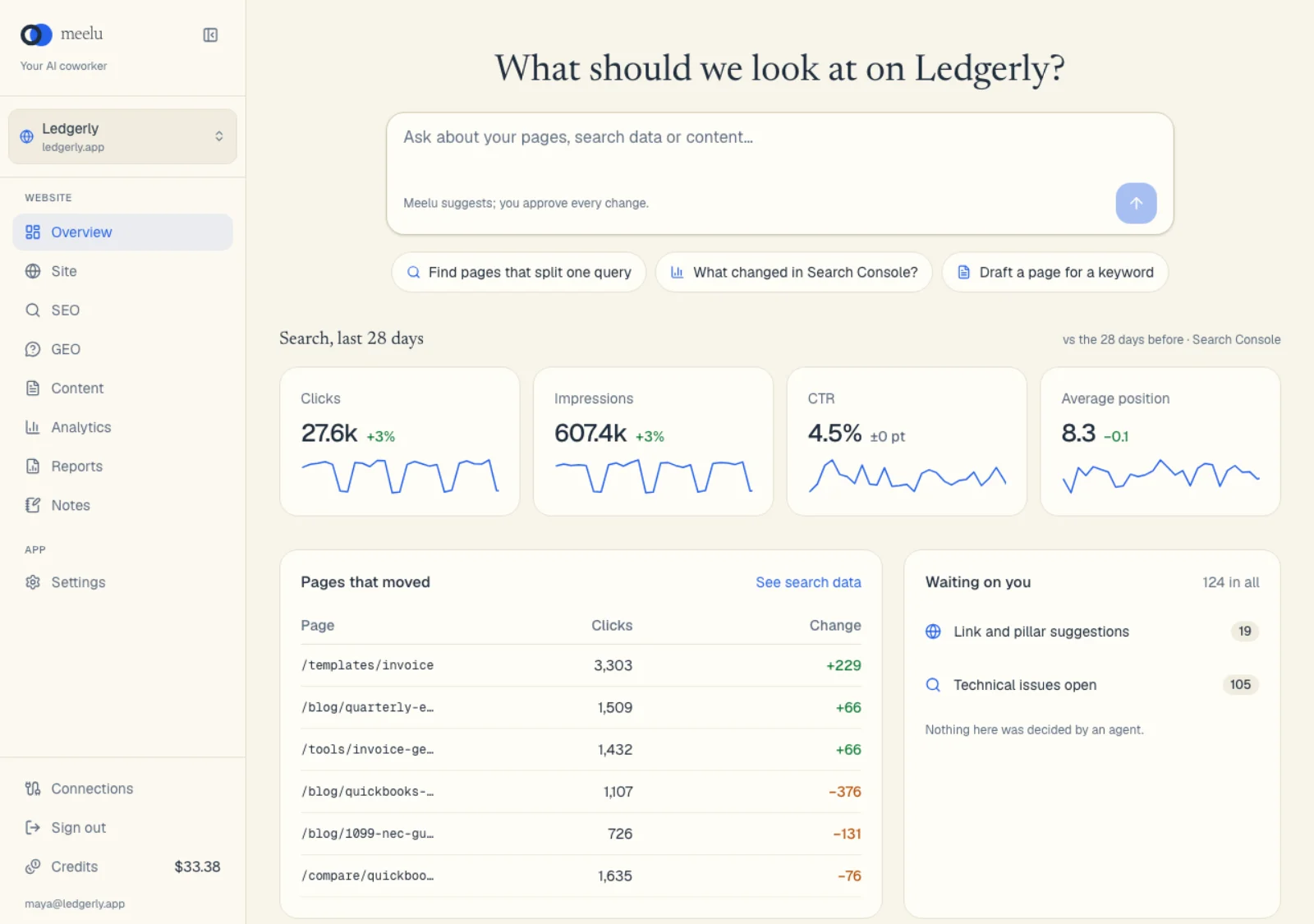
| Part | What it is |
|---|---|
| Meelu logo | Takes you to the Overview desk. The collapse button next to it shrinks the sidebar to icons. |
| Website switcher | Shows the website you are working on. Click it to switch websites, add one or delete one. |
| Website group | The desks for the current website: Overview, Site, SEO, GEO, Content, Analytics, Reports and Notes. |
| App group | Settings, for things that are not about one website. |
| Connections | Your Google connections, your linked email, CMS, CRM, docs, community and issue tracker accounts, your own Anthropic key and the default AI model. |
| Sign out | Signs you out of Meelu. |
| Credits | Your credit balance in US dollars. Click it to top up or see what you spent. |
| Your email | The account you are signed in with. |
A desk is a screen for one kind of work, such as reading your pages or writing new ones. See Desks for what each one does.
The website switcher
Everything in the Website group is about the website shown in the switcher. Switching website changes every desk at once.
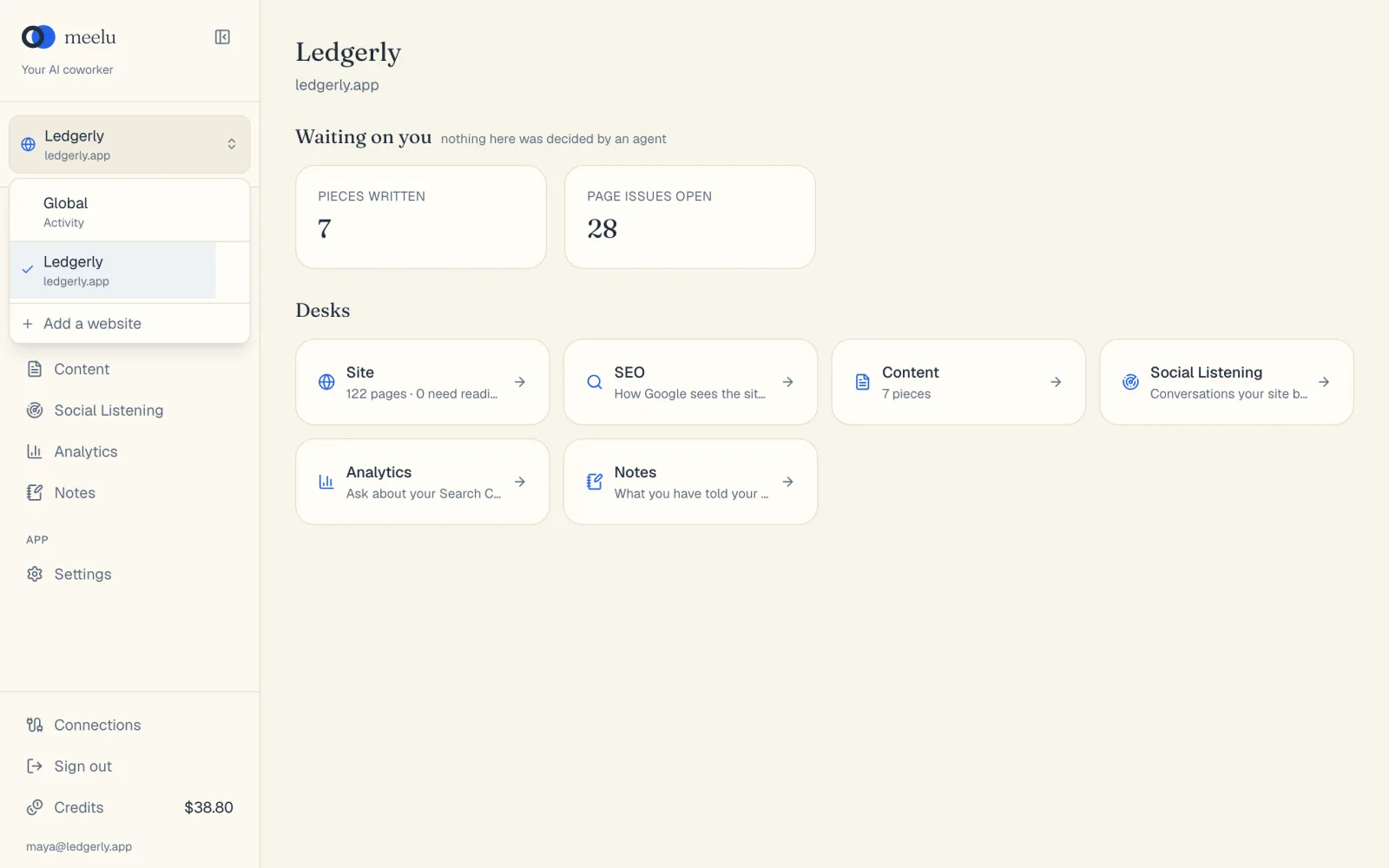
The list also has an entry called Global. Pick it for work that is not about one website, such as your profile. In Global, the sidebar shows only the App group.
A website with a yellow paused tag has run out of credits. Hover over the tag to see the date it will be deleted unless you add credits. See Websites.
Banners at the top
Sometimes a strip appears above the main area:
| Banner | What it means | What to do |
|---|---|---|
| Meelu (version) is available | A newer version of the app is out. | Click Download, quit Meelu, then install the new version over this one. Your sign-in and settings stay. |
| Not enough credits | A paid step could not run because your balance is too low. | Click Add credits. |
| This website is paused | The website's daily fee could not be paid. | Click Add credits, then Check again. |
The Overview desk
The Overview desk is your home screen for a website. The heading shows the website's name and domain.
Waiting on you shows counts of things that need your attention, such as Pieces written on the Content desk and Page issues open on the Site desk. As the label says, nothing here was decided by an agent. These are items for you to look at.
Desks lists every desk for this website with a one-line status, such as how many pages have been read. Click a card to open that desk.
Asking Meelu: the task panel
Most desks have a small sparkle button at the top right called Ask Meelu. Click it to start a task: a conversation with Meelu about that desk. Some desks also have ready-made task cards, like Start a task on the SEO desk.
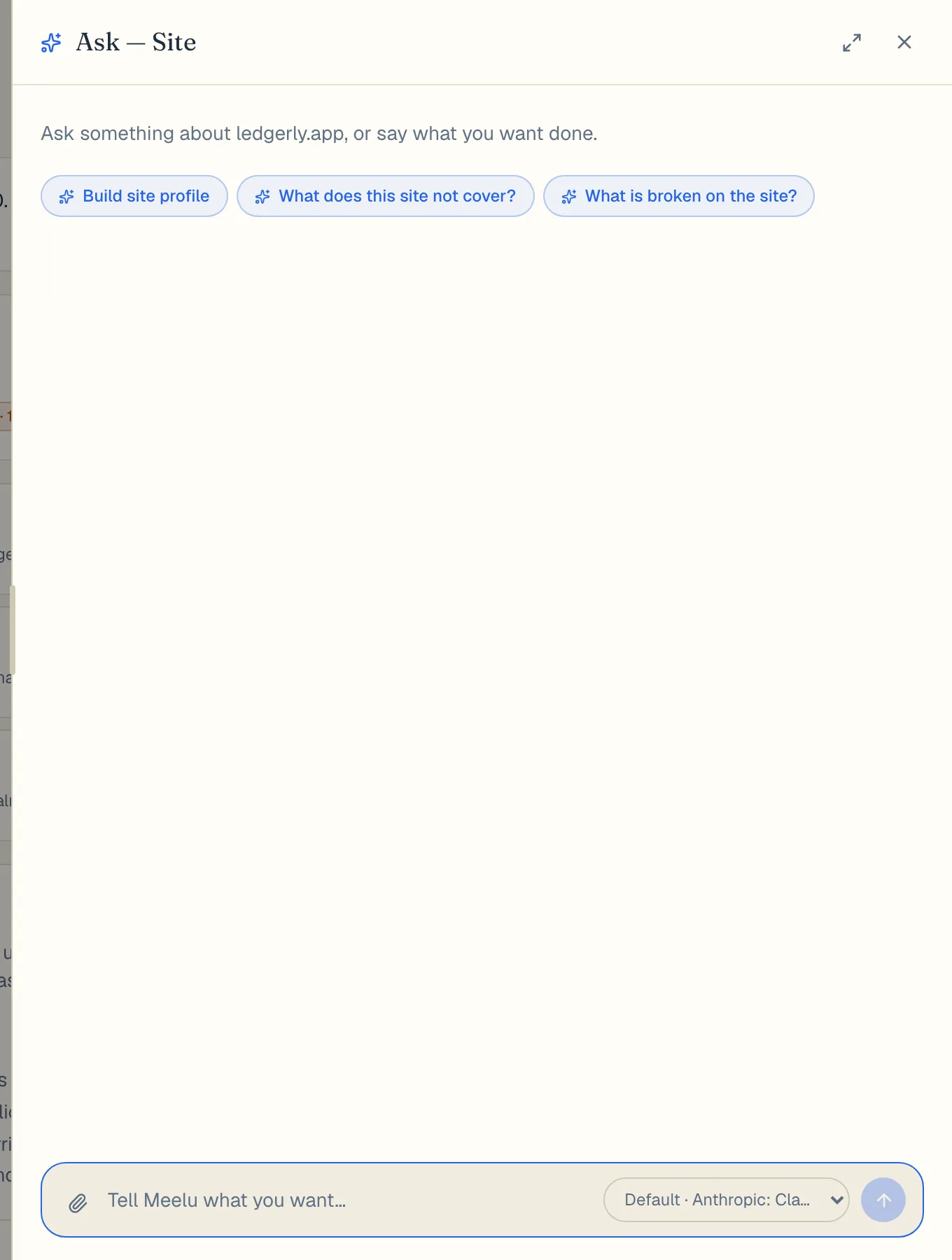
- 1Prompt chips: ready-made tasks for this desk
- 2Type your own request
- 3Pick the AI model for this task
The task panel opens from the right. In it you can:
- click a prompt chip (a ready-made question) to get started fast
- type what you want in your own words and press Enter
- attach up to 5 files with the paperclip
- pick the AI model for this task from the menu next to the send button
- stop Meelu with the square button while it works
When Meelu wants to save or change something, it stops and asks you in the panel. Nothing is saved until you say yes.
You can close the panel and keep working. The task keeps running. A Tasks button in the bottom-right corner shows how many tasks you have, and says needs you when one is waiting for your answer. A thin tab on the right edge of the window reopens the last task.
Read more in Working with the agent and Approving what Meelu does.
What each button does
| Button | Where | What it does |
|---|---|---|
| Collapse sidebar / Expand sidebar | Top of the sidebar | Shrinks the sidebar to icons, or brings it back. |
| Website switcher | Top of the sidebar | Opens the list of websites. |
| Add a website | Website switcher | Adds another website. |
| Ask Meelu (sparkle) | Top right of most desks | Starts a task about that desk. |
| Tasks | Bottom-right corner | Lists all tasks for this website, with their status. |
| Reopen last task panel | Right edge of the window | Opens the task you looked at last. |
| Connections | Bottom of the sidebar | Opens Google connections, linked accounts and AI model settings. |
| Credits | Bottom of the sidebar | Opens your balance, top-ups and history. |
| Sign out | Bottom of the sidebar | Signs you out. |
You are set up
That is the whole layout. Good next reads: