Search performance
See the clicks, impressions, CTR and position Google Search Console measures for every page and query.
The Search performance screen shows what Google actually sends your site. The numbers come from your Google Search Console account. They are measured, not estimated: every query, every page, every day.
Open it from the Search performance card on the SEO home screen, or the Search clicks · 28d card.
Before you start: connect and sync
Search Console data comes into Meelu through the desktop app. Your Google connection stays on your computer.
Connect Search Console
If Search Console is not connected, the screen shows Search Console is not connected. Click Connect Search Console and sign in with a Google account that can see this site in Search Console. See Connect Google.
Import your history
Click Import 16 months of search data. The first sync brings in up to 16 months, which is as far back as Search Console keeps. A progress bar shows Importing search data — day X of Y. You can click Stop at any time.
Pick a property, if asked
If your site has more than one Search Console property (for example a domain property and a URL-prefix property), Meelu asks Which property is authoritative? They can report different numbers, so pick the one you trust. The sync then continues.
Keep it up to date
Later, click Sync now to bring in the newest days. A sync picks up from the last day it already has, so it is much faster than the first one.
Syncing is free and runs on your computer
Syncing does not use credits. It runs inside the desktop app, so the app must be open while it works.
While a sync runs, it also checks the index status of some of your pages. The bar then reads Checking index status — X of Y pages. See Indexation.
Reading the screen
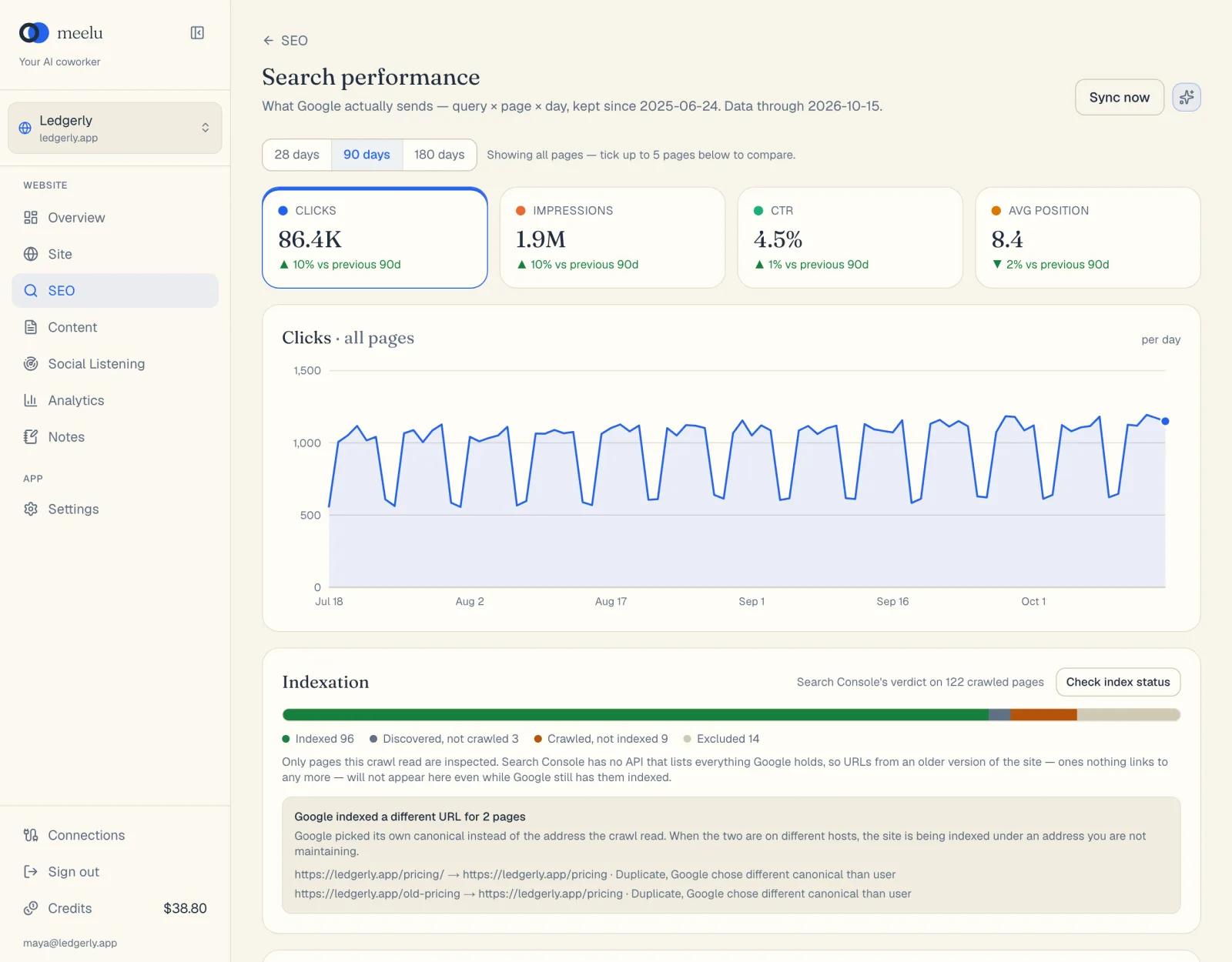
- 1Sync now fetches the latest Search Console data
- 2Pick the time range
- 3Ask Meelu
Time range and comparing pages
Choose 28 days, 90 days or 180 days at the top. Every tile, chart and table follows this choice.
By default the chart shows all pages. Tick the box next to up to five pages in the Pages table to compare them. Each selected page gets its own colour and appears as a chip at the top. Click × on a chip to remove it.
Metric tiles
Four tiles show the totals for the chosen range, and the change against the range before it:
| Tile | Meaning |
|---|---|
| Clicks | How many times searchers clicked through to your site. |
| Impressions | How many times your pages appeared in results. |
| CTR | Clicks divided by impressions. |
| Avg position | Your average spot in the results. Lower is better, so a fall in this number is good news. |
Click a tile to show that metric in the chart. The chart plots one point per day.
Low-volume warning
If your site gets very few impressions (under about 200 in the last 28 days), a yellow note says the numbers are thin. Treat ups and downs as noise until there is real volume. Meelu is told the same, so it will not read meaning into tiny changes.
Striking distance
This card lists searches where you already rank between positions 8 and 15, with at least 50 impressions in the last 28 days. These are just outside the top ten, so they are often the quickest wins.
| Column | Meaning |
|---|---|
| Query | What people searched. |
| Page | Your page that ranks for it. |
| Pos | Average position over 28 days. |
| Impressions | How often it appeared. |
| Inlinks | How many links from your own pages point to it. A needs links badge appears at two or fewer. |
The inlink count tells you what kind of push the page needs. A page with almost no internal links probably needs links from your other pages first. A page that already has many links probably needs better content. The Site desk's structure view can suggest the internal links.
Pages table
Pages · last N days lists every page Search Console reports. Click a column name to sort by it. Type in Filter pages… to find a page by its address. Use ‹ Prev and Next › to move through the list.
| Column | Meaning |
|---|---|
| Page | The page address. |
| Clicks | Clicks in the range. |
| Impr. | Impressions in the range. |
| CTR | Clicks divided by impressions. |
| Pos. | Average position. |
| Index | Google's index status for the page, such as Indexed or Not indexed. A red ≠ means Google chose a different address as the main version of this page. |
| Crawled | How long ago Google last visited the page. |
| Inspected | How long ago Meelu last checked the page's index status. |
Top queries
Top queries lists the searches that bring you clicks, with the page that ranks for each, Clicks, Impr. and Pos. When you tick pages in the Pages table, this list shows only the queries for those pages.
At the bottom of the screen, a note names the Search Console property in use.
What each button does
| Button | What it does |
|---|---|
| Connect Search Console | Connects your Google account in the desktop app. |
| Import 16 months of search data | Runs the first sync. Shown only when there is no data yet. |
| Sync now | Brings in the newest days since the last sync. |
| Stop | Stops a running sync. Days already imported are kept. |
| 28 days / 90 days / 180 days | Sets the time range for everything on the screen. |
| Clicks / Impressions / CTR / Avg position tiles | Choose which metric the chart shows. |
| Checkbox on a page row | Adds the page to the chart and filters Top queries to it. Up to five pages. |
| × on a page chip | Removes that page from the comparison. |
| Column names in the Pages table | Sort by that column. Click again to reverse. |
| Circular arrow on a page row | Re-checks that one page's index status now. Desktop app only. |
| Check index status | Checks pages that have never been checked. See Indexation. |
| ‹ Prev / Next › | Page through a table. |
| Ask Meelu (sparkle icon) | Opens a task about your search data. See Asking the SEO desk. |
What to do with it
- High impressions, low CTR: people see you but do not click. Look at the page title and description for that query.
- Striking distance rows: pick the few with the most impressions and push them onto page one.
- A page lost clicks: check whether its position dropped or only its CTR, and whether it is still indexed. The Why did this page drop? prompt does this for you.